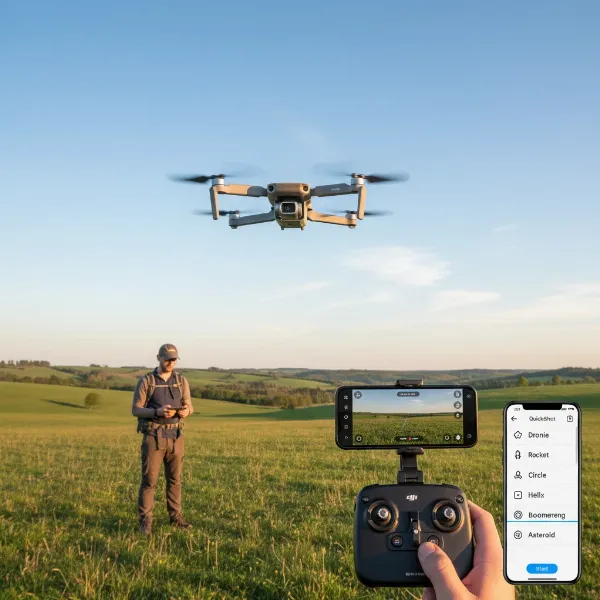
Drones have revolutionized how we see the world, from breathtaking aerial photography to precise industrial inspections. As an Admin for DroneEar.com with over a decade of experience, I’ve seen these incredible machines evolve. Keeping your drone operating at peak performance and ensuring its longevity heavily relies on one crucial, yet often overlooked, task: regularly updating its firmware. Updating firmware isn’t just about getting new features; it’s a critical safety measure that ensures your drone flies smoothly, securely, and reliably.
What is Drone Firmware and Why Does It Matter?
At its core, firmware is the embedded software that acts as your drone’s operating system, controlling everything from its flight systems and sensors to communication with your remote controller. Think of it as the brain dictating how your drone’s hardware functions. Without current firmware, your drone simply cannot perform optimally, and its very safety can be compromised.
Regular firmware updates bring a host of vital benefits. They often introduce performance enhancements, leading to more stable flights and improved responsiveness. New updates can unlock exciting new features, expand your drone’s capabilities, or ensure compatibility with recently released accessories. Crucially, firmware updates deliver essential bug fixes that resolve unexpected issues, enhance flight stability, and improve battery management. Furthermore, these updates frequently include security enhancements to protect your drone from potential vulnerabilities and ensure compliance with evolving aviation regulations, such as Remote ID. Ignoring these updates leaves your drone susceptible to outdated performance, potential glitches, and even security risks.
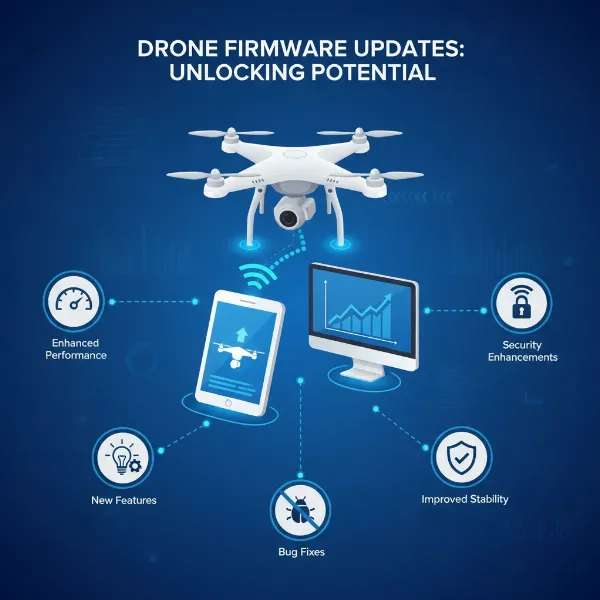 illustration showing various benefits of drone firmware updates like safety, features, and performance
Preparing for a Safe Firmware Update
Before you embark on any firmware update, thorough preparation is paramount to avoid potential complications. Rushing this process can lead to interrupted installations and, in the worst-case scenario, “bricking” your drone, rendering it inoperable.
Firstly, ensure both your drone and remote controller batteries are fully charged. A minimum of 50% charge is often recommended, but aiming for 100% on both devices eliminates the risk of power loss during the critical update process. Secondly, secure a stable and reliable internet connection if you are downloading firmware via an app or desktop software. An unstable connection can lead to incomplete downloads and corrupted files. Thirdly, it’s always a good practice to back up any important data stored on your drone’s internal memory or SD card before proceeding, just in case.
Always take the time to read the official release notes provided by your drone’s manufacturer. These notes detail what the update includes, such as new features, bug fixes, or critical safety improvements, and highlight any specific instructions or known issues. Using genuine, high-quality USB cables and formatted SD cards (if applicable) is also essential to maintain stable data transfer. Finally, choose a calm, clear environment free from distractions where you can focus entirely on the update process. Avoid updating in locations with strong electromagnetic interference or during adverse weather conditions.
Step-by-Step Guide: Common Firmware Update Methods
Drone manufacturers typically offer a few primary methods for updating firmware. While the exact steps may vary slightly between brands like DJI, Autel Robotics, or Parrot, the underlying principles remain consistent.
Method 1: Via Mobile Application (e.g., DJI Fly, Autel Sky/Explorer)
This is often the most convenient method for many consumer drones.
- Power On and Connect: Turn on your drone and remote controller. Connect your smartphone to the remote controller (usually via a cable) and ensure your smartphone has a stable Wi-Fi or cellular data connection.
- Launch App: Open the manufacturer’s dedicated mobile app (e.g., DJI Fly App, Autel Sky App). The app should automatically detect your drone and controller.
- Firmware Update Prompt: The app will typically display a prompt if a new firmware update is available. If not, navigate to the ‘Profile’ or ‘Settings’ section, then look for ‘Software Update’ or ‘Firmware Version’ to manually check.
- Download and Install: Follow the on-screen prompts to download the new firmware. Once downloaded, tap ‘Update’ or ‘Install’ to begin the installation process.
- Monitor Progress: Keep the drone, remote controller, and mobile device powered on and connected throughout the update. Do not exit the app or interrupt the process. The drone may restart automatically several times; this is normal.
- Completion: The app will notify you when the update is successful. After the drone restarts, you’re usually good to go.
Method 2: Via Desktop Software (e.g., DJI Assistant 2)
For some drones or more complex updates, using desktop software is the recommended approach.
- Download and Install Software: Visit your drone manufacturer’s official website (e.g., DJI’s support page) and download the appropriate desktop software (e.g., DJI Assistant 2 for your specific drone series). Install it on your computer.
- Power On and Connect: Power on your drone. Connect the drone (and sometimes the remote controller separately) to your computer using a USB cable. Ensure a secure connection.
- Launch Software: Open the desktop software. Log in with your manufacturer’s account if prompted. The software should detect the connected drone or controller.
- Select Device and Update: Click on the detected device. The software will display available firmware versions. Select the latest version and click ‘Upgrade’ or ‘Update’.
- Monitor Progress: Do not disconnect the drone or computer, or close the software during the update. The drone will often restart upon completion.
- Completion: The software will indicate a successful update. Restart the drone and remote controller.
Method 3: Via SD Card (Common for Autel Robotics)
Some manufacturers, like Autel Robotics, offer an SD card update method, particularly useful if internet access is limited at the update location.
- Download Firmware: Go to the manufacturer’s official website and download the firmware upgrade package for your specific drone model.
- Transfer to SD Card: Insert an empty or freshly formatted Micro SD card into your computer. Transfer the downloaded firmware file to the root directory of the SD card. Do not place it in any folders.
- Insert into Drone: Safely eject the SD card from your computer and insert it into your drone’s SD card slot.
- Power On: Power on the drone (and remote controller). The drone’s system will typically detect the firmware file on the SD card and automatically begin the update process.
- Monitor and Restart: Observe the progress, often displayed on the remote controller’s screen or via LED indicators on the drone. Do not power off or interfere. Once complete, restart both the drone and remote controller.
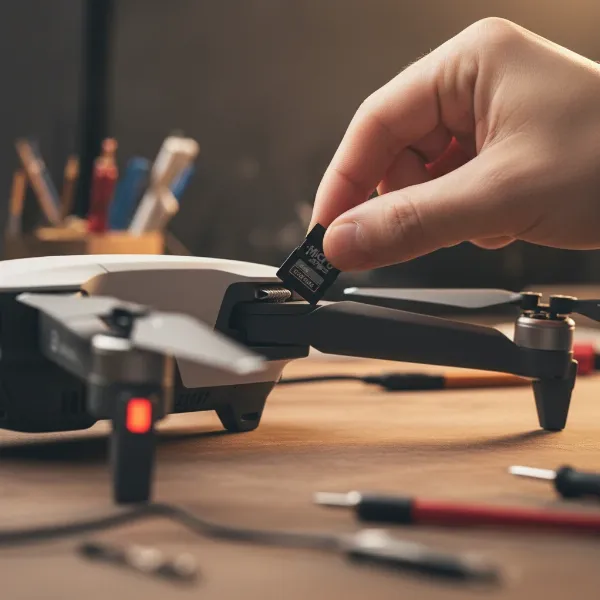 a hand inserting an SD card into a drone for a firmware update process
Troubleshooting Common Firmware Update Issues
Even with careful preparation, issues can sometimes arise during a firmware update. Knowing how to troubleshoot common problems can save you stress and prevent irreversible damage.
One frequent problem is the update getting stuck or failing midway. This can often be resolved by restarting the entire process from the beginning, ensuring all preliminary steps like battery charge and stable connection are met. If you encounter persistent error messages, consult your drone’s user manual or the manufacturer’s online support pages for specific error code explanations. Online forums and pilot communities can also be valuable resources for finding solutions.
“Always double-check your battery levels and internet connection if an update fails. These are the most common culprits for interruptions.” – John Doe, Senior Drone Technician
Connectivity problems are another common cause of failure. If your app or desktop software struggles to download the firmware, try using a different Wi-Fi network or even a mobile hotspot to ensure a stable internet connection. If the drone isn’t detected by your computer or app, verify that you are using the correct USB cable, ensure it’s securely connected, and check that you have the appropriate version of the desktop software (e.g., DJI Assistant 2) for your drone model. In rare cases, an incompatible mobile device or an outdated version of the control app can also cause issues; always check compatibility lists on the manufacturer’s website.
If, despite all troubleshooting, you face a persistent failure or suspect your drone has been “bricked” (unresponsive after an update), contact the manufacturer’s customer support immediately. They have specialized tools and expertise to diagnose and potentially resolve more complex issues.
Post-Update Checklist
Once your firmware update is reported as successful, there are a few final steps to ensure everything is in perfect working order before your next flight.
First, verify the successful installation by checking the firmware version number in your drone’s app or desktop software. It should reflect the newly installed version. Next, perform any necessary calibrations, such as IMU or compass calibrations, as some firmware updates may reset or require these.
Before taking on any critical missions, conduct a short test flight in a safe, open area. Pay close attention to flight stability, control responsiveness, and any unusual behavior. Finally, quickly check your drone’s settings, as some firmware updates can occasionally reset custom configurations to default values. Adjust them back to your preferences as needed.
Conclusion
Keeping your drone’s firmware up-to-date is an indispensable part of responsible drone ownership, ensuring enhanced performance, increased safety, and access to the latest features. By understanding the “why” behind these updates, diligently preparing for the process, and knowing how to troubleshoot potential issues, you can confidently maintain your valuable equipment. Always prioritize safety and follow manufacturer guidelines to protect your investment and enjoy countless hours of successful flight.
Ready to elevate your drone experience? How often do you check for new firmware updates on your drone?
Frequently Asked Questions
How often should I update drone firmware?
Manufacturers typically recommend updating firmware as soon as a new version is released, especially if it addresses critical bug fixes, security vulnerabilities, or introduces important new features. It’s good practice to check for updates every few weeks or before important flights.
Can I skip a drone firmware update?
While it might seem tempting to skip an update if your drone is flying fine, it’s generally not recommended. Skipping updates can mean missing out on crucial bug fixes, performance improvements, security patches, and regulatory compliance, which can eventually impact your drone’s reliability and safety.
What if my drone gets “bricked” during an update?
A “bricked” drone means it has become unresponsive and inoperable, usually due to an interrupted or failed firmware update. If this happens, immediately stop trying to fix it yourself and contact the manufacturer’s customer support. Do not attempt further steps without their guidance.
How long does a drone firmware update usually take?
The duration of a drone firmware update can vary depending on the file size, your internet connection speed, and the specific drone model. Generally, updates can take anywhere from 5 to 20 minutes. It’s crucial not to interrupt the process once it has begun.
Do I need to update my remote controller’s firmware separately?
Yes, in most cases, both your drone and its remote controller (and sometimes even intelligent batteries) have their own firmware that needs to be updated. Manufacturers’ apps or desktop software will usually guide you through updating all connected components simultaneously or sequentially.