Let’s be real for a moment. We’ve all been there. That heart-in-your-throat feeling when your drone becomes a tiny speck against the vast sky, and for a split second, you lose orientation. Panic starts to bubble up. It’s in these moments that you truly appreciate your drone’s guardian angel. So, what is the return to home rth function? It’s more than just a button on your controller; it’s your digital get-out-of-jail-free card, a sophisticated system designed to bring your prized aircraft back to you safely. Think of it as a pre-programmed lifeline that can turn a potential disaster into a routine landing.
What Exactly is the Return to Home (RTH) Function?
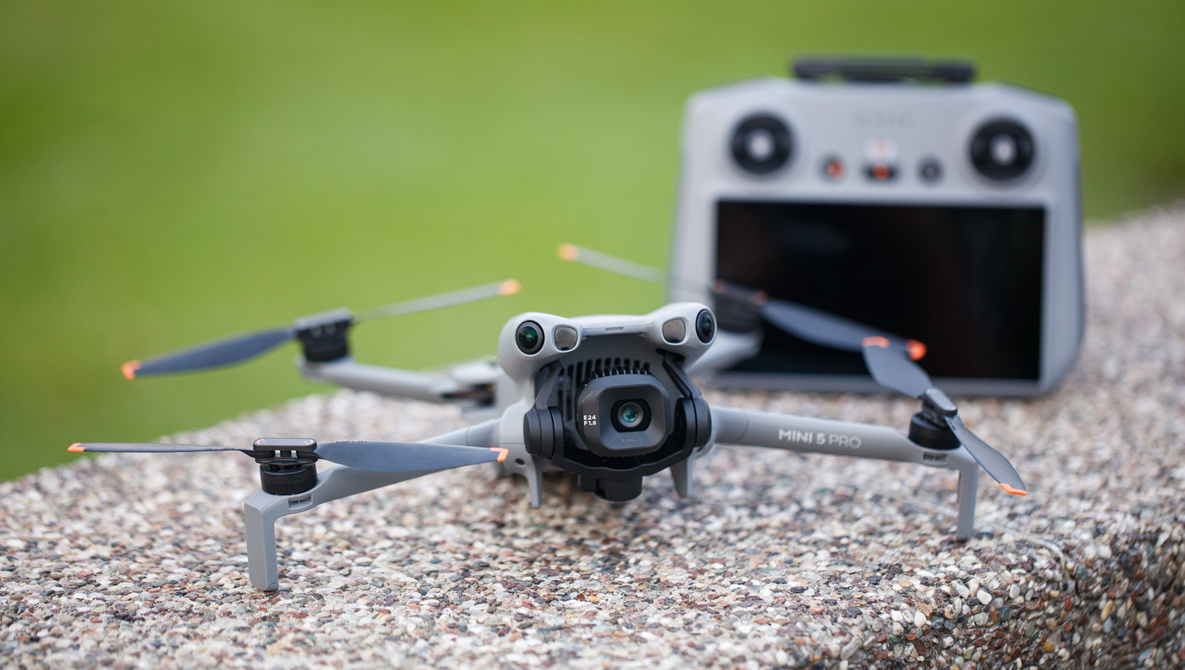
In the simplest terms, the Return to Home (RTH) function is an autonomous safety feature that enables your drone to fly back to its pre-recorded takeoff location, or “Home Point,” without any manual input from you. It’s like a digital homing pigeon, using GPS and other onboard sensors to navigate its way back, ascend to a safe altitude, and often, land itself precisely where it started.
This feature is a cornerstone of modern drone technology, transforming what used to be a high-risk hobby into something accessible and far less stressful for beginners and professionals alike. It’s the ultimate backup plan, kicking in when things don’t go as expected.
How Does RTH Actually Work? The Magic Behind the Button
It might seem like magic, but the RTH function is a symphony of technology working in perfect harmony. It’s not just one thing, but a combination of several key components that make a safe return possible.
The GPS Handshake: Setting Your Home Point
Before your drone’s props even start spinning, the most critical step for RTH happens. When you power on your drone, it begins communicating with GPS satellites orbiting the Earth.
- Acquiring Satellites: Your controller will usually show a satellite count. You need to wait for the drone to lock onto a sufficient number of satellites (typically 10 or more) to get a strong, accurate position fix.
- Recording the Home Point: Once the GPS signal is stable, the drone automatically records its current coordinates as the Home Point. A confirmation message like “The Home Point has been updated. Please check it on the map” is your green light.
Never take off before you get this confirmation. Rushing this step means your drone might have an inaccurate Home Point, or worse, no Home Point at all.
The Brains of the Operation: Flight Controller & Sensors
Your drone’s flight controller is the central computer. It takes the GPS data for the Home Point and compares it to the drone’s current location. When RTH is activated, the flight controller calculates the most direct route home. But it also relies on other sensors:
- Compass (Magnetometer): Tells the drone which direction it’s facing so it can orient itself towards the Home Point.
- Barometer: Measures air pressure to determine the drone’s altitude, which is crucial for clearing obstacles.
- Inertial Measurement Unit (IMU): A combination of accelerometers and gyroscopes that helps stabilize the drone and measure its movement and tilt.
The Three Flavors of RTH
Not all Return to Home scenarios are created equal. The function can be triggered in three distinct ways, each serving a different purpose.
- Smart RTH (Manual RTH): This is the one you control. You press the RTH button on your remote controller or tap it in the app. You might use this if you lose line of sight, feel disoriented, or simply want an easy way to end your flight. You are in command and can cancel it at any time.
- Low Battery RTH: Your drone is smart enough to monitor its own fuel tank. When the battery depletes to a certain pre-set level, it will automatically trigger RTH. This is a critical feature that prevents your drone from falling out of the sky because it ran out of juice. It will typically give you a warning first, but if you ignore it, the drone will take over to save itself.
- Failsafe RTH: This is the most important one. Failsafe RTH activates automatically if the drone loses its connection with the remote controller for a specified period (usually a few seconds). This can happen if you fly too far, behind a large obstacle, or in an area with heavy signal interference. Instead of just flying off aimlessly, the drone initiates its return sequence.
“Failsafe RTH is arguably the single most important safety innovation in consumer drones. It has prevented the loss of countless aircraft and is the feature that gives new pilots the confidence to explore.” – Dr. Alistair Finch, Aerospace Systems Engineer
Why is Understanding RTH Non-Negotiable for Pilots?
Simply knowing the feature exists isn’t enough. A deep understanding of what the return to home RTH function is and how it behaves is fundamental to being a responsible pilot.
- It Prevents Drone Loss: This is the most obvious benefit. A lost signal or a moment of confusion no longer means a lost drone.
- It’s Your Safety Net in a Pinch: Flying in a new, complex environment? Feeling unsure of your remaining battery life? RTH provides a reliable way to recover the aircraft without stress.
- It Builds Flying Confidence: Knowing you have a robust backup plan allows you to be more adventurous with your flights, pushing your skills without taking reckless risks. For an in-depth look at other crucial safety measures, you should review our guide on [drone safety regulations].
Setting Up RTH for a Perfect Homecoming: A Step-by-Step Guide
To ensure your RTH works flawlessly when you need it most, proper setup is key. Always perform these checks before you fly.
- Find a Clear Takeoff Spot: Launch from an open area, free from trees, power lines, or buildings. This will be your landing zone, so make it a safe one.
- Wait for a Strong GPS Lock: Be patient. Let your drone acquire at least 10-12 satellites and wait for the app to confirm the Home Point is recorded.
- Set Your RTH Altitude: This is the most important setting to configure. The RTH altitude is the height your drone will climb to before it starts its journey home. You must set this altitude higher than any potential obstacles in your entire flight area.
- Verify the Home Point on the Map: Double-check in your drone’s flight app that the Home Point (usually marked with an ‘H’) is exactly where you are standing. If it’s in the middle of a lake or on a rooftop, you have a problem.
Pilot’s Pro Tip: A common rookie mistake is leaving the RTH altitude at its default setting. If you’re flying around trees that are 100 feet tall and your RTH altitude is set to 80 feet, your drone will fly straight into them on its way home. Always assess your surroundings and set the altitude accordingly.
Common RTH Pitfalls and How to Dodge Them
While RTH is an incredible tool, it’s not foolproof. Understanding its limitations is just as important as knowing how to use it.
- Obstacle Avoidance Isn’t Always On: In some older models or during Failsafe RTH, obstacle avoidance sensors may be disabled to conserve power. Your drone could fly a straight line home right into a building it would normally avoid. Know your specific model’s behavior.
- GPS Interference: Flying in “urban canyons” between tall buildings or near large metal structures can cause a weak or inaccurate GPS signal. This can lead to an incorrect Home Point or difficulty navigating back.
- Strong Winds: A heavy headwind can drastically slow your drone’s return speed, causing it to use much more battery than anticipated. In extreme cases, it may not have enough power to make it back.
- Dynamic Environments: The “safe” takeoff spot you chose might not be safe an hour later. A car could have parked there, or a crowd of people may have gathered. Always maintain visual line of sight during the RTH landing phase if possible.
Pre-Flight RTH Checklist
- [ ] Clear, open takeoff area selected.
- [ ] Strong GPS lock achieved (10+ satellites).
- [ ] Home Point confirmed and verified on the map.
- [ ] RTH Altitude set higher than all surrounding obstacles.
- [ ] Battery level is at 100%.
- [ ] I am aware of my drone model’s RTH behavior (e.g., obstacle avoidance).
Frequently Asked Questions (FAQ)
Q1: What happens if the drone battery is critically low during RTH?
If the drone calculates that it doesn’t have enough battery to return to the Home Point, it will typically initiate an automatic landing right where it is to prevent a crash from total power loss.
Q2: Can I cancel the Return to Home function?
Yes, in most cases, especially during a Smart RTH or Low Battery RTH, you can regain control by pressing the RTH button again on the controller or a cancel command in the app. This will stop the RTH procedure and give manual control back to you.
Q3: Will RTH work without a GPS signal?
No. The entire Return to Home function is fundamentally dependent on GPS to know where its Home Point is and where the drone is currently located. Without a GPS lock, RTH will not be available.
Q4: Can I update the Home Point mid-flight?
Yes, most modern drones allow you to update the Home Point to your current location (the controller’s location) or the drone’s current location. This is useful if you are moving, for example, on a boat.
Q5: What’s the difference between landing and hovering at the Home Point?
You can usually configure this in your settings. Some pilots prefer the drone to return and hover at a certain height above the Home Point, waiting for them to take manual control for the final landing. Others set it to land automatically. For beginners, automatic landing is often a great choice.
Your Drone’s Best Friend
Ultimately, understanding what the return to home RTH function truly means is about more than just technology—it’s about responsible and confident piloting. It’s a safety feature that watches your back, giving you the peace of mind to focus on capturing that perfect shot. Treat it not as an autopilot, but as a trusted co-pilot. Set it up correctly before every flight, understand its limitations, and it will be the most valuable feature on your drone. Now go out there, fly safe, fly smart, and always know your way home.